
How to Deposit THB via Bank Transfer on Binance TH

The Large Amount Deposit menu allows you to deposit Thai Baht (THB) into your Binance TH account via bank transfer more easily. This feature is available only to users whose accounts have been enabled for this function. If you wish to use this feature, please contact our Customer Support to check the requirements and request activation. Once your account is enabled for the function, you can follow the steps in this article to complete your deposit.
Website
1. Log in to your Binance TH account, go to [Deposit] > [Deposit THB], and then select [Large Amount Deposit] from the menu on the left-hand side of the page.
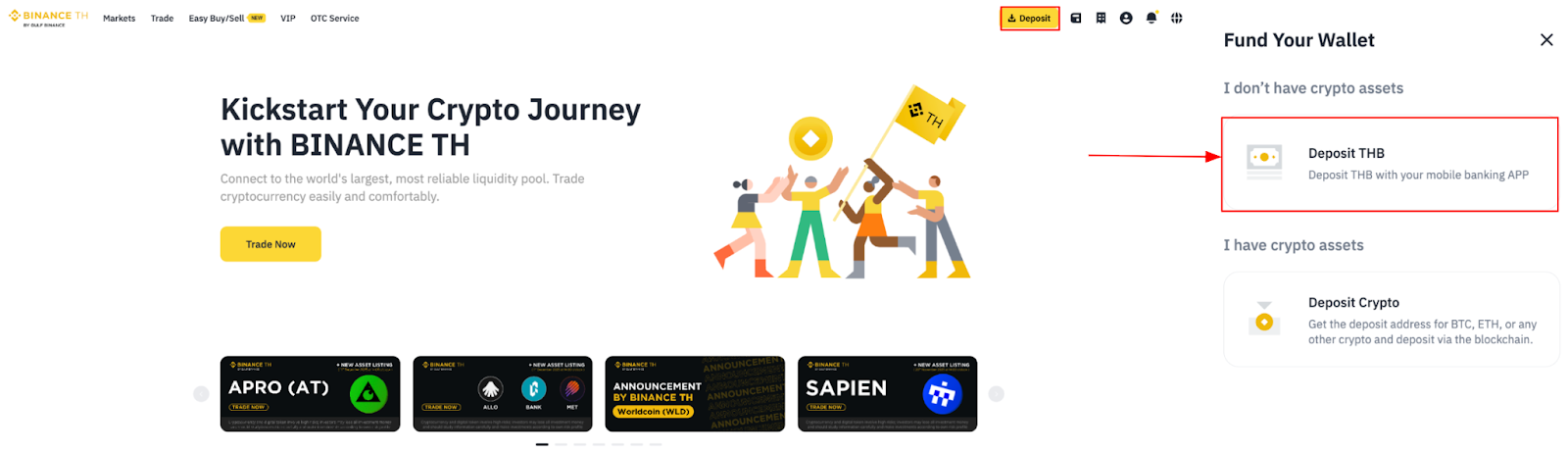
2. If you have not previously made a deposit in THB using the Mobile Banking (QR code) method before, you are required to initiate a deposit via QR code using the designated bank account in order to register it in the system.
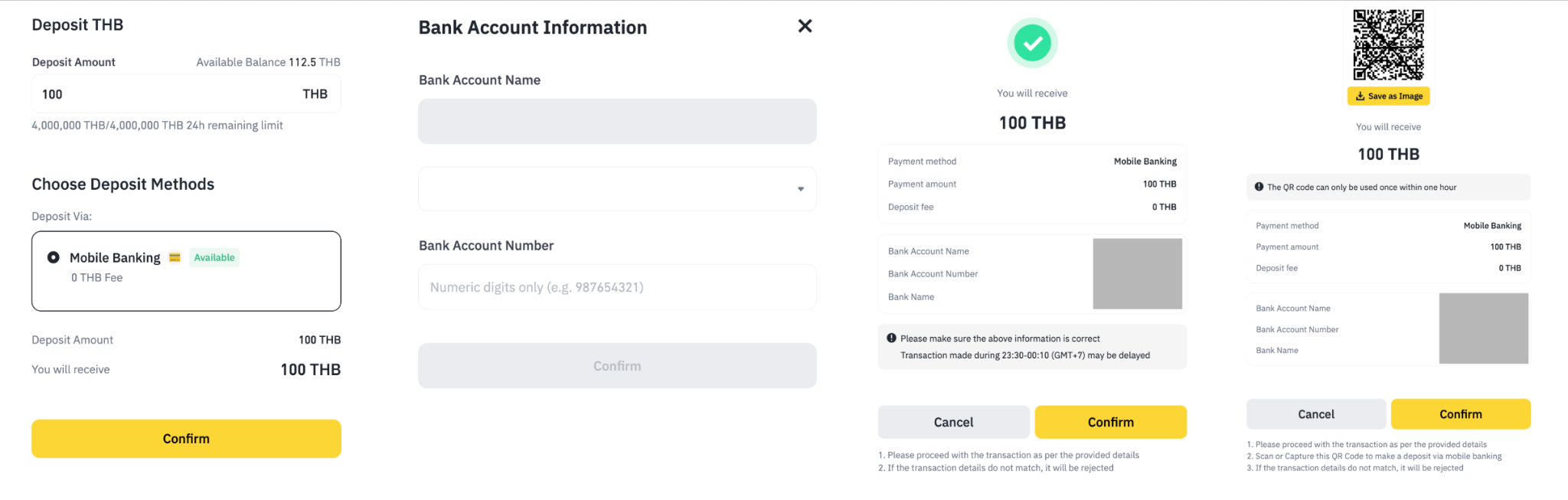
2.1 Initiate a THB deposit via QR Code and enter the bank code and account number of the bank account you intend to use for Direct Transfer.
2.2 Proceed to the confirmation step to allow the system to record your bank account details.
2.3 After the confirmation is completed, immediately cancel the QR Code deposit request. No funds will be transferred at this stage.
2.4 Submit the required documents to the Customer Support team for bank account verification before proceeding to deposit. The required documents are as follows:
A copy of the first page of the bank book showing the account holder’s name (individual or company), full bank account number, and branch code.
A copy of the ID card or passport of the authorized person.
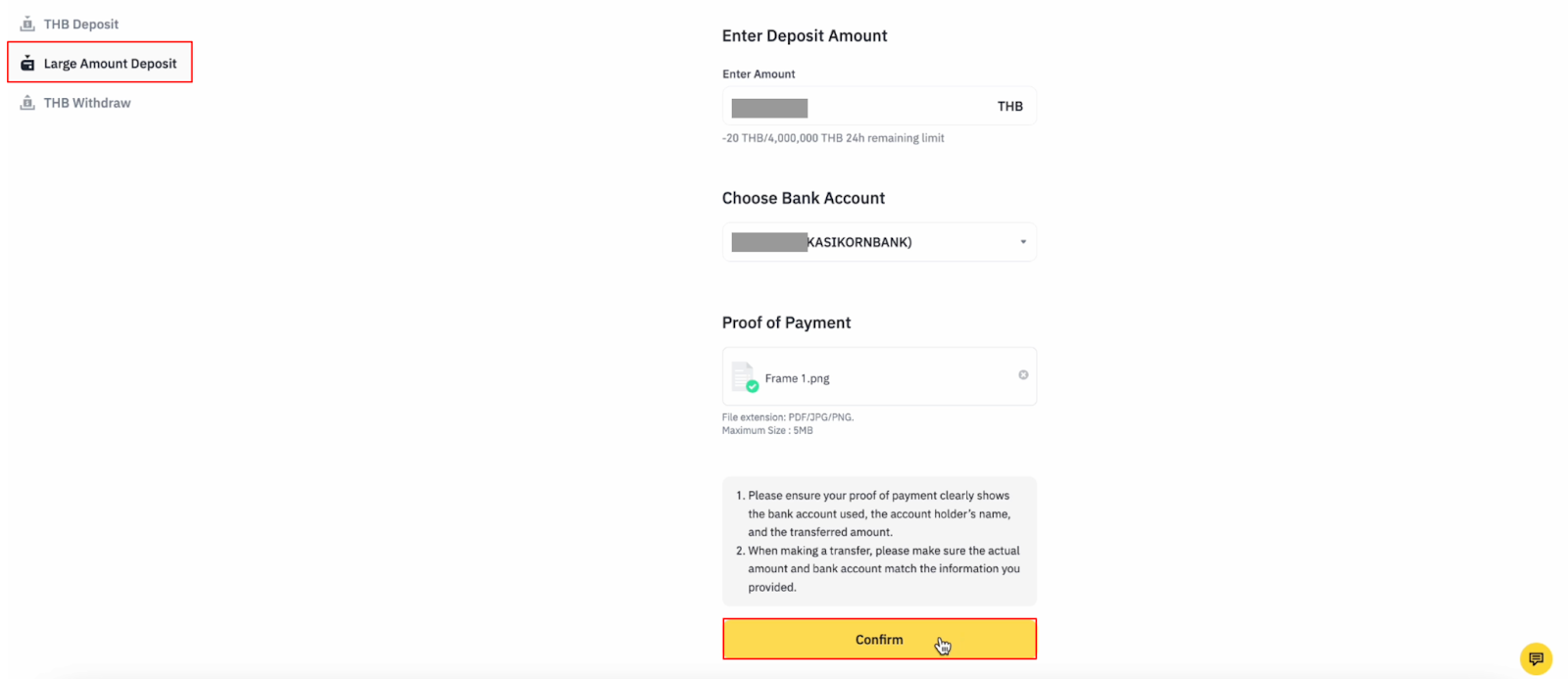
3. Enter the deposit amount, select your bank account, upload the proof of payment, and click [Confirm]. A pop-up message will appear, please review it carefully to ensure all information is correct. If the deposit amount or bank account details do not match, your deposit may not be processed in a timely manner. After reviewing, click [All Matched] to proceed.
Note:
Please make sure that the deposit proof doesn’t require to enter password to open files
Accepted file formats: PDF, JPG, PNG. Maximum file size: 5 MB.
Please make sure your proof of payment clearly shows the full bank account without any mark, the account holder’s name, and the transferred amount.
Ensure that the actual transfer amount and the bank account match the information you provided.

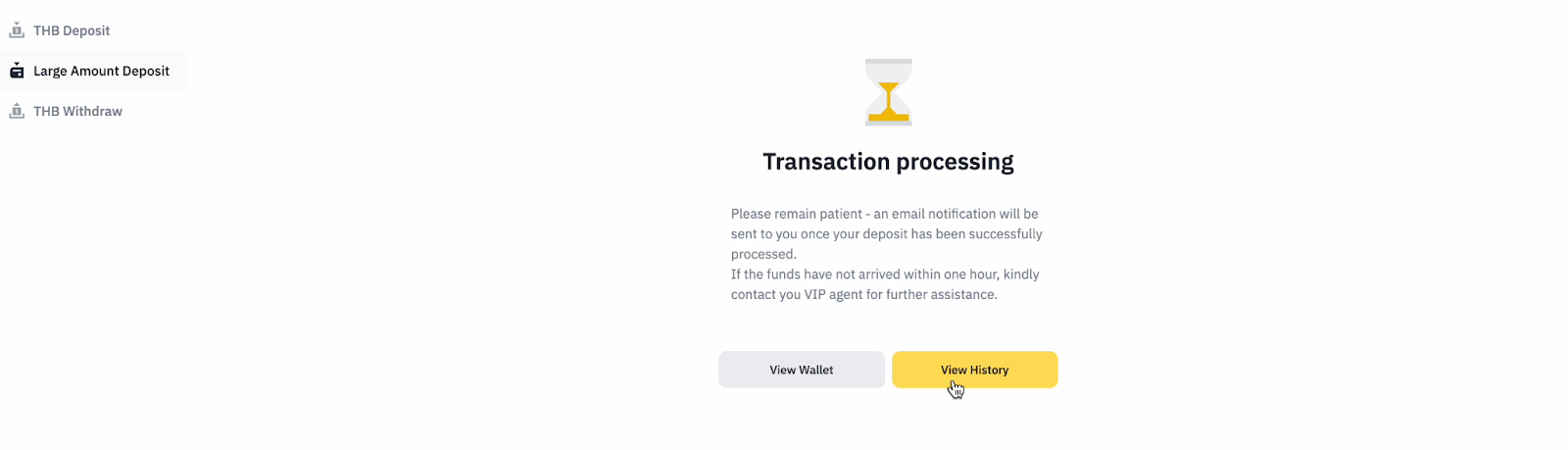
4. The transaction is currently Processing. Please remain patient; a Web inmail notification will be sent once your deposit has been successfully processed.
If the funds are not credited within a timeframe or you would like to cancel the submission to resubmit deposit proof again, kindly contact Customer Support for further assistance. You may also click [View History] to check the transaction status.
Application
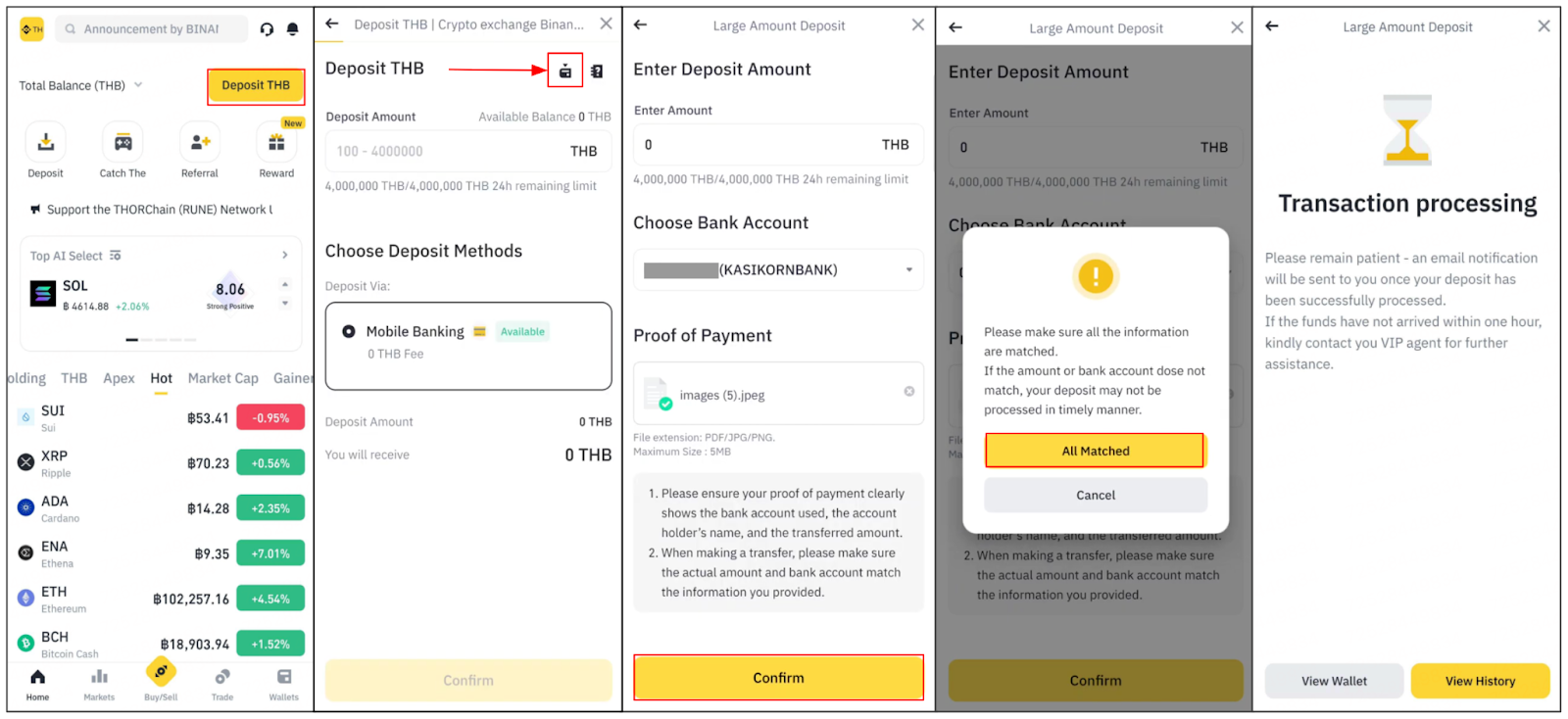
1. Log in to your Binance TH account, navigate to [Deposit THB], and then tap the [Large Amount Deposit] icon located on the right-hand side of the page, next to the FAQ icon.
2. If you have not previously made a deposit THB using the Mobile Banking (QR code) method before, you are required to initiate deposit via QR code using the designated bank account in order to register it in the system.
2.1 Initiate a THB deposit via QR Code and enter the bank code and account number of the bank account you intend to use for Direct Transfer.
2.2 Proceed to the confirmation step to allow the system to record your bank account details.
2.3 After the confirmation is completed, immediately cancel the QR Code deposit request. No funds will be transferred at this stage.
2.4 Submit the required documents to the Customer Support team for bank account verification before proceeding to deposit. The required documents are as follows:
A copy of the first page of the bank book showing the account holder’s name (individual or company), full bank account number, and branch code.
A copy of the ID card or passport of the authorized person.

3. Enter the deposit amount, select your bank account, upload the proof of payment, and click [Confirm]. A pop-up message will appear, please review it carefully to ensure all information is correct. If the deposit amount or bank account details do not match, your deposit may not be processed in a timely manner. After reviewing, click [All Matched] to proceed.
Note:
Please make sure that the deposit proof doesn’t require to enter password to open files
Accepted file formats: PDF, JPG, PNG. Maximum file size: 5 MB.
Please make sure your proof of payment clearly shows the full bank account without any mark, the account holder’s name, and the transferred amount.
Ensure that the actual transfer amount and the bank account match the information you provided.
4. The transaction is currently Processing. Please remain patient; an email notification will be sent once your deposit has been successfully processed.
If the funds are not credited within a timeframe or you would like to cancel the submission to resubmit deposit proof again, kindly contact Customer Support for further assistance. You may also click [View History] to check the transaction status.
Note:
The maximum deposit depends on your daily limit.
Please use non-zero decimals to make it easier to identify the transaction, such as XXXX.01 THB, into the Binance TH account
To avoid any discrepancy or mistake in the transaction, kindly deduct any fees directly from your bank account funds and not from the amount designated for deposit into the Binance TH bank account.